ScreenPal Hosting Settings for Solo plans
When you have a free account, a Solo Deluxe plan, or a Solo Max plan, you can edit your profile and configure your hosting preferences from the Settings area of your ScreenPal Hosting account.
Free and Solo Deluxe users have access to ScreenPal's free hosting services that enable storing, customization, and sharing of image and video content. You can configure several options for how your content is hosted from the Permissions settings. You can also view your current plan, as well as other available plans from the Plan area.
If you are a Solo Max user, you have access to several additional options in ScreenPal Hosting that enable you to use ScreenPal AI and personalize your viewers' experience, including the AI Tools, Custom Domain, Branding, and Customize Player settings.
To view information about configuring ScreenPal Hosting settings for Team Plans, please see the Setting up hosting for Team Plans article.
Open your Settings
Be sure to log into your account before you begin. You can then access Settings in two ways:
1. Click Settings in the menu on the left:
2. Click your user badge in the top right and then click Settings in the menu:
The My Profile page opens. From here, you can edit your name and email address, set the language for your account, and update your notification preferences.
My Preferences
To open your ScreenPal Hosting preferences, click My Preferences in the menu.
From this area, you can configure the following items:
AI Settings
If your plan includes access to ScreenPal AI and you want to keep the original name of your videos when you run ScreenPal AI on them, click the checkbox for Prevent AI from Renaming Title.
Watch Page - Player Controls Settings
Set the default player options and viewer actions on watch pages for your videos. You can always change these settings for individual videos from the Watch Pages area of the Share Video tab. For more information about video embed options, please see our Player Controls video tutorial.
Video Embed - Player Controls / Settings
Set the default player options and viewer actions for video embed codes. You can change these settings for individual videos from the Embed Options area of the Share Video tab. For more information about the items displayed in this area, please see our Player Controls video tutorial.
If you update your preferences, be sure to click Save Changes before you leave My Preferences.
Settings
The settings you have access to depend on which type of ScreenPal plan you have. Free users will only have access to Permissions and Plan settings.
AI Tools
If you have a Solo Max plan, you can use this area to turn ScreenPal AI on and off, and determine how AI will be applied to your content.
To turn on ScreenPal AI, select the check box next to Enable AI features. You can then choose one of the following options:
- You can decide when to use AI on content - Select this option if you want to manually generate ScreenPal AI content for the videos you choose. ScreenPal AI content includes a video title, summary, chapters, captions, and audio descriptions.
- AI will automatically be applied to newly uploaded content - Select this option to automatically generate AI content for all videos that you upload to your ScreenPal Hosting account.Finally, if you would like to allow your viewers to translate your videos' captions into their preferred language on video watch pages, select the check box for Enable auto-translations on watch pages for viewers.
Custom Domain
This area is only available to Solo Max subscribers. Use these settings to determine how your ScreenPal content will be accessed by your viewers.
Choose one of the following options:
- No Custom Website - ScreenPal content links will simply point to screenpal.com. When you select this option, you can still customize the logo displayed on video watch pages.
- Subdomain on ScreencastHost.com - Links to your ScreenPal content will point to a custom subdomain on ScreenPal. For example, myvideos.ScreencastHost.com.
- CNAME from your domain - Selecting this option maps your registered subdomain to your selected ScreenPal homepage, which is specified in the Home Page field of Branding settings. For more information about how to configure a subdomain, please see the Use a custom domain (CNAME) article.
Branding
The Branding settings are only available for Solo Max users. Use this area to customize your content watch page with your brand's logo and colors.
- Page Title - Enter a title that will be displayed as the name of the browser tab. The Page Title will also be displayed at the top of the watch page if you do not add a logo.
- Use Logo - Select this checkbox if you would like to upload an image to display in the header of your watch pages. If you select Use Logo, the Page Title will be displayed as the name of the browser tab, but not at the top of the watch page. Click the Upload Logo button to select the image that you will use as your logo.
- Logo Link - Here, you can enter a URL that will open in a new browser tab when viewers click your logo. This must be a valid URL or you will not be able to save your changes on the Branding page. If you do not enter a link, your logo will still be displayed at the top of the watch page, but will not be clickable.
- Customize header color - Select this checkbox to select a custom color for your watch page header. You can select a color using the color palette, or enter a hex code.
- Home Page - This option is only available if you are using a subdomain or CNAME. Use it to select what is displayed on your site's home page.
Customize Player
Customize Player settings are only available to Solo Max users. Use this area to customize the video player.
- Custom Image/Video Branding - Click Upload Image to upload a logo or graphic to overlay on all your ScreenPal videos and images.
- Position on Video - Use this grid to select the logo or graphic's position on your videos and images.
- Player Color - Customize the color of the video player controls and play button by entering a hex code, or clicking the color dot to select a color from the palette.
Permissions
Free users, as well as Solo Deluxe and Solo Max subscribers can configure settings on the Permissions page.
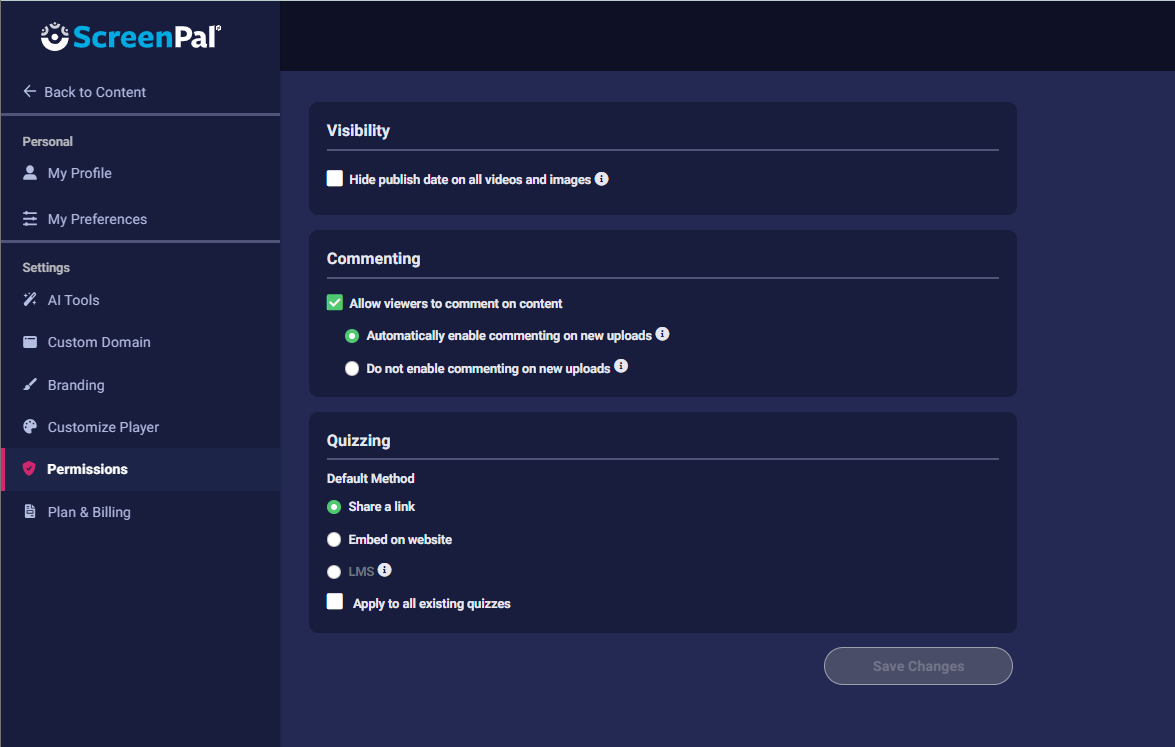
- Visibility - Select the checkbox for Hide publish date on all videos and images to hide this information on uploaded content for your viewers.
- Commenting - Enable or disable the comment section displayed for viewers on your videos. If you clear the checkbox for Allow viewers to comment on content, commenting is completely turned off. You will not be able to turn it on for specific videos from Video Settings. If you enable commenting by selecting the checkbox next to Allow viewers to comment on content, you can choose one of these options:
- Automatically enable commenting on new uploads - The commenting feature will be turned on for all new videos you upload to your ScreenPal Hosting account.
- Do not enable commenting on new uploads - Commenting is not enabled automatically for new uploads; you can turn on comments for individual videos from Video Settings.
- Quizzing - Select the default method for sharing quizzes. When you create a quiz and go to the Assignment and Settings tab, this is the method that is automatically selected. You can change it for each quiz if you like. Please note that the LMS option is only available for Team Plans. Solo Max users can also select the Apply to all existing quizzes option to apply the default method to previously created quizzes.
- Visibility - Select the checkbox for Hide publish date on all videos and images to hide this information on uploaded content for your viewers.
- Commenting - Enable or disable the comment section displayed for viewers on your videos. If you clear the checkbox for Allow viewers to comment on content, commenting is completely turned off. You will not be able to turn it on for specific videos from Video Settings. If you enable commenting by selecting the checkbox next to Allow viewers to comment on content, you can choose one of these options:
- Automatically enable commenting on new uploads - The commenting feature will be turned on for all new videos you upload to your ScreenPal Hosting account.
- Do not enable commenting on new uploads - Commenting is not enabled automatically for new uploads; you can turn on comments for individual videos from Video Settings.
- Quizzing - Select the default method for sharing quizzes. When you create a quiz and go to the Assignment and Settings tab, this is the method that is automatically selected. You can change it for each quiz if you like. Please note that the LMS option is only available for Team Plans. Solo Max users can also select the Apply to all existing quizzes option to apply the default method to previously created quizzes.