Install ScreenPal for Microsoft Edge
Installing in Microsoft Edge:
Go to the settings menu in the top right corner of the browser and choose "Extensions".
Click Manage extensions.
On the left side of the page, flip the Allow Extensions from Other Stores switch to the on position. It will ask you to confirm this, click Allow.
Visit the Chrome Web Store for extensions.
Search for "ScreenPal".
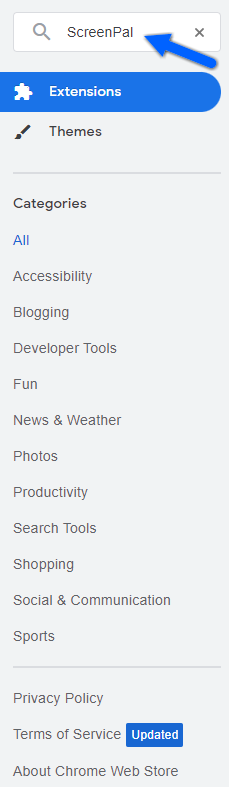
You will see two extensions, the ScreenPal Desktop App Launcher and the ScreenPal Screen Recorder for Video Messages.
Click the extension you want to add.
Click Get. ScreenPal will install within Microsoft Edge.
If you already have a ScreenPal account, it will remain logged in and you will be directed to the page where you are able to test functionality.
Your ScreenPal videos will be stored in your account.
If you are a new ScreenPal customer, you will be taken to a page to create an account.
Follow the directions to create your account, and then you'll be ready to use ScreenPal!