Configure Team Plan Permissions
If you are a Team Owner or Team Administrator, you can use the Permissions area in Settings to enable certain ScreenPal features and configure default settings for your team members.
1. Visibility
For Require login to view content, you have two options:
- Select No, content owner can choose visibility to allow all members of your team to select the visibility setting for each video they upload.
- Select Yes, require content only visible to Team Users, to automatically set all images and videos uploaded by members of your team to Team User visibility. This visibility setting requires team users to log into their ScreenPal team account before viewing content uploaded by other team members. When you select Yes, members of your team cannot override the visibility setting for a video unless you add them to a specific user group with override ability. You may want to do this, for example, if you have a group within your team that consistently posts public videos, such as Marketing or Customer Education.
If your organization uses a learning management system (LMS), you can select the option to Allow non-team users to view content shared through Learning Management Systems (LMS). Then, even when members of your team set video visibility to Team Member Only, non-team members will be able to see those videos only when accessing them within your LMS.
Choose whether you want to display or hide the publish date for your team's videos and images by selecting or clearing the check box for Hide publish date on all videos and images.

Note: As a Team Owner or Team Administrator, you can still override the visibility setting for content that these team members upload or channels they create. For example, if a team member who is part of a group with override ability changes the visibility of a video to Public and that video should not actually be public, as a Team Admin you can open the video details and select the Clear visibility override check box. Selecting this check box changes the visibility of the video back to Team User. For more information, see our Team Plan Sharing video tutorial.
To allow specific groups of users to override the Team User visibility setting, save your selection for Require login to view content. Scroll back up to the top of the Permissions page, and click the groups link:

This opens the Groups area of your account:
Click the More Options icon for the group to which you want to give override access and select Edit Group from the menu.
This opens the Edit Group box. To enable members of the selected group to override the video visibility setting of content they upload to ScreenPal, select the check box for Allow group members to choose visibility for their content (regardless of team visibility settings) and then click Save.
2. User Visibility and Management
User Visibility & Management enables you to determine if team members can see other users within the team and invite new users to join your team:
To allow team members to see other users within the team, select the check box for Allow users to see other users on team plan.
To enable members of your team to invite other users to your Team Plan, select Allow users to invite other users to the plan. When you select this option you can also decide whether to automatically add users that your team members invite, or require the approval of a Team Admin before adding them.
3. Watch Page - Player Controls Settings
Use this area to set the default viewing settings on watch pages for your team's videos. Viewing settings include both player options and viewer actions that are available to audience members. You can then allow team members to override these defaults for their own content from Video Settings by selecting the checkbox for Allow users to override watch page settings.
For more details about player controls on watch pages, see our Player Controls video tutorial.
4. Video Embed - Player Controls / Settings
Use this section to set the default viewing settings for embed codes for your team's videos. Embed code settings include both player options and viewer actions. You can allow or prevent team users to override the defaults you select by selecting or clearing the checkbox for Allow users to override embed settings. For more information about video embed code settings, see the Player Controls video tutorial.
5. LMS - Player Controls / Settings
If your ScreenPal Team Plan is integrated with a Learning Management System (LMS), you can use this section to choose the default viewing settings for ScreenPal embeds in your LMS. If you select the Allow users to override LMS settings checkbox, creators on your team will be able to select different settings when embedding their content.
6. Secure Backup
Secure Backup gives you the option to enable the Backup and Restore feature, which will be presented to Team Creators when using the Project Manager on both Windows and Mac.
7. Commenting
For Commenting you can:
- Enable or disable the commenting section displayed for viewers on your videos. If you clear the check box for Allow viewers to comment on content, users on your team cannot enable commenting for any videos in your account.
- If you have commenting enabled, you can set new video uploads to have commenting enabled automatically. Visit Video Settings to turn off commenting for specific videos. Alternatively, select Do not enable commenting on new uploads if you do not want to turn on commenting by default.
8. Branding
Use this area to determine whether you want to allow the members of your team to customize the branding of their own videos (overriding the selections you made in the Branding area of Settings) and allow team members to customize the player color of their own videos (overriding the selections you made in the Customize Player area).
9. Quizzing
Here, select the Default Method for sharing a quiz. The method you choose here will automatically be selected on the Assignment & Settings tab of all quizzes created by your team, but can be changed if necessary.
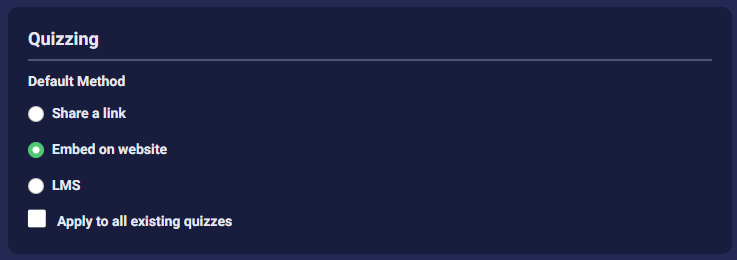
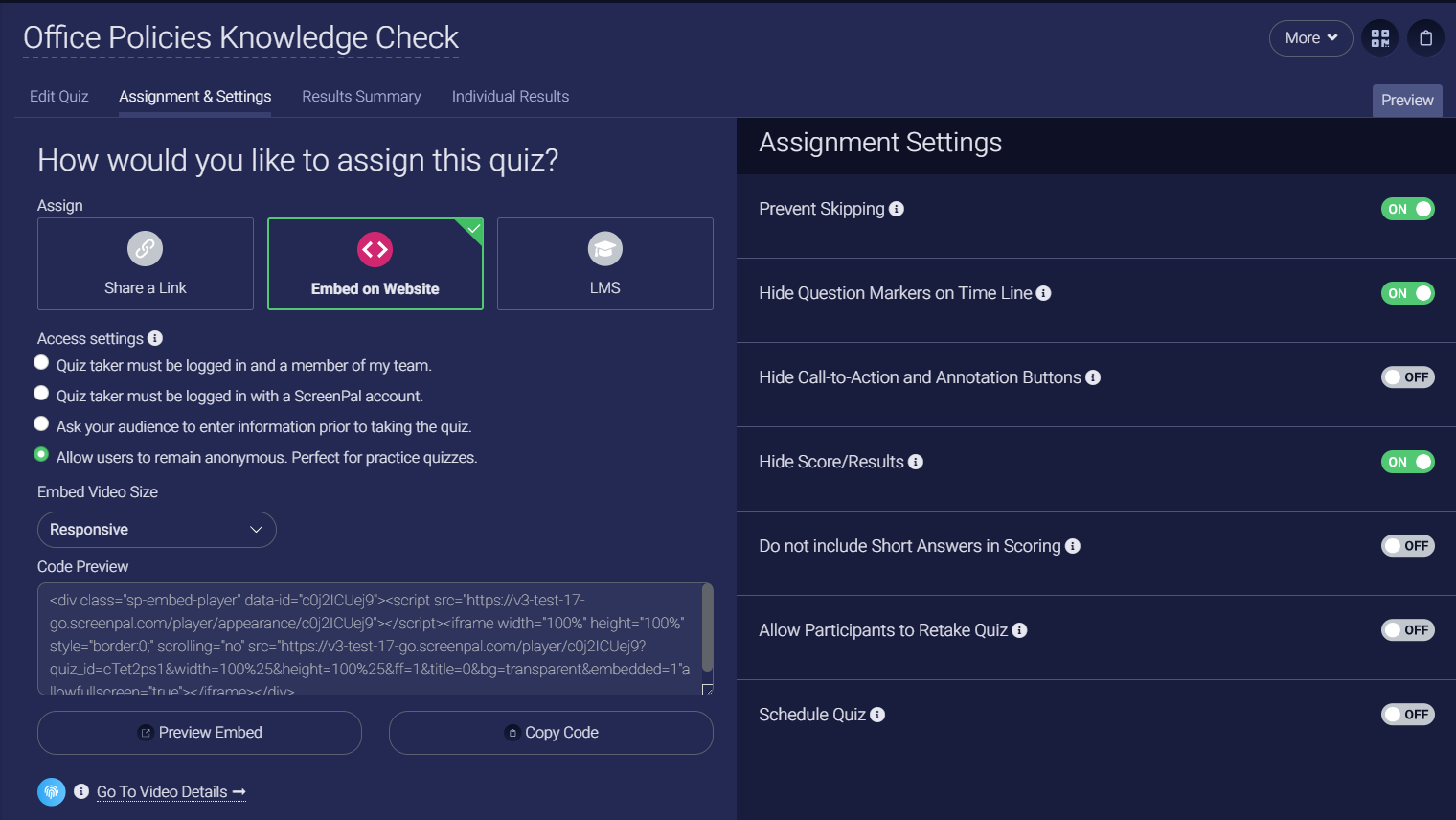
You can also retroactively apply the sharing method to all previously created quizzes in your ScreenPal account by selecting the check box for Apply to all existing quizzes.
Here, select the Default Method for sharing a quiz. The method you choose here will automatically be selected on the Assignment & Settings tab of all quizzes created by your team, but can be changed if necessary.
You can also retroactively apply the sharing method to all previously created quizzes in your ScreenPal account by selecting the check box for Apply to all existing quizzes.
10. Quiz Import Options
Quiz Import Options enables you to decide if you want to allow your team members to import videos from YouTube to add quiz questions to. If you clear the checkbox next to YouTube, users on your team will not be able to select the From YouTube option when they click Add Media on the Create a Quiz dialog.
When you are finished setting up your team's permissions, be sure to scroll to the bottom of the page and click Save Changes.
If you have any questions or need further assistance, please contact our support team directly, using the link below. Click Submit a Ticket and provide us with a brief description of your concern. We will contact you within 24 hours.
When you are finished setting up your team's permissions, be sure to scroll to the bottom of the page and click Save Changes.
If you have any questions or need further assistance, please contact our support team directly, using the link below. Click Submit a Ticket and provide us with a brief description of your concern. We will contact you within 24 hours.